Why DRCY might find the wrong datasheet (and how to fix it)
We've already made the case that AI quality depends on your underlying data, and that design intent has to be captured for a model to reason well. This article is a practical guide for when a review comes back noisy, you suspect component data might be the cause, and you want to know what to check first.
Key takeaways
- DRCY needs a manufacturer part number or an internal-to-manufacturer part mapping to resolve the right datasheet for each component.
- Check the missing datasheets list before reviewing findings; unresolved active components can leave important design constraints out of the review.
- Select the design variant and store do-not-populate status in component attributes so DRCY reviews the build you intend to manufacture.
The diagnostic that comes first
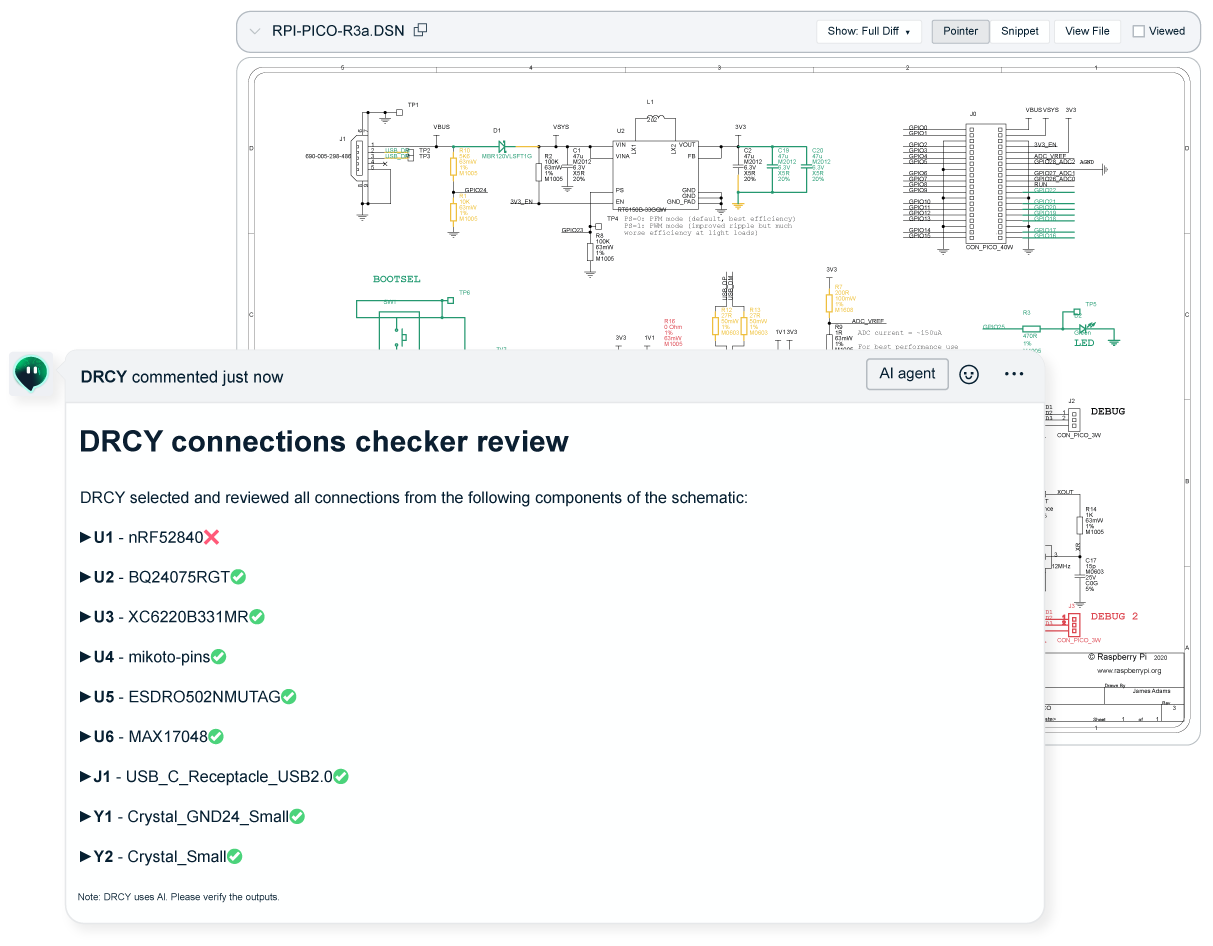
When a run finishes, DRCY posts a list of components it couldn't resolve a datasheet for.
Read that list first before going in depth on all the findings.
The types of components that are on the list matter more than how long it is. A bunch of passives with unresolved datasheets might have minimal impact. Missing datasheets on controllers, drivers, op-amps, or regulators can change the entire review because these components are more likely to generate meaningful findings.
So if any active components appear on the list, it means DRCY ran without the reference material needed to review them. Fix the input before judging the output. The sections below explain how.
Situation #1: your parts use manufacturer part numbers
This is the healthy case, and most teams are in it without knowing.
If a component's attributes carry something like STM32F103C8T6 or TPS62172, DRCY resolves the datasheet automatically. Nothing to configure.
Still worth one check: click three or four components in the browser and look at the attributes. Confirm two things:
- A part number is present
- It's the manufacturer part number, not an internal one
This takes less time than reading a single finding and it gives you a sense of how the review will go.
If the attributes look right and the review is still noisy, the cause is usually further down this page: a variant you didn't select, or a part number that reads like a manufacturer part number but resolves to the wrong document.
Situation #2: the part isn't public, or the wrong datasheet came back
The fix is to upload the datasheet yourself. Uploaded datasheets take priority over fetched datasheets, which makes an upload the right way to override a bad or missing match.
Reach for it when:
- The part is under NDA
- It's custom silicon or an internal ASIC
- It's pre-release with no public documentation
- The fetched datasheet was for a similar but different part
That last case is the one that looks like a model problem and isn't.
If a part number attribute is ambiguous, truncated, or doesn’t contain a valid part number, the search can return a datasheet that's close but wrong. The resulting finding may sound precise while being wrong, because the reasoning was sound but the input was lost.
Before disputing a finding, check which datasheet it cites. Every DRCY comment links the document and page it used. A ten second check is all it takes to resolve most disputes.
We outlined the priority order for datasheets when we learned about running AI schematic design reviews. For this situation, the key point is that a datasheet you upload to the repository takes priority over fetched sources.
Situation #3: your schematics use internal part numbers
This is the situation that can block teams. The symptom is an initial review with little useful information.
Plenty of organizations put an internal part number in the component attributes, pulled from a PLM or ERP system. That number is meaningful inside your company but not for a datasheet provider like DigiKey. In this case, DRCY may not be able to resolve a datasheet, so instead it simply reviews the design without component constraints. The result looks pretty useless.
The fix is to map your internal part numbers to manufacturer part numbers. Your BOM likely has both columns already, so it's easy to set this up.
Two things to note:
- Set up the mapping before the first run. Doing it in advance avoids an initial review that lacks the component data DRCY needs.
- The mapping lets you specify which attribute contains the correct part number for DRCY. If part numbers are stored reliably in one named attribute, you can tell DRCY to use that attribute rather than search for one. If they aren’t stored reliably anywhere, that’s a library problem you’ll need to fix first.
Variants, and the divider that isn't there
One more failure comes from component data itself rather than datasheets, and it produces especially confusing findings.
Consider a design with a resistor that isn't fitted. This could be do-not-populate (DNP), do-not-include (DNI), not-place (NP), or however your team marks it. In the netlist, that resistor still exists. It's drawn, it's connected, it has a reference designator.
DRCY sees two resistors to ground where you see one, then interprets a voltage divider that doesn't physically exist and reports a finding. The analysis is technically correct based on the netlist, but that doesn’t represent the actual design you're building.
Two parts to the fix:
- Select your variant when you start a run. Variant selection sits in the DRCY launch dropdown along with page selection. If your project has variants and you don't pick one, you're asking for a review of a board that doesn't exist.
- Put DNP status in the component attributes. DRCY reads variant and DNP status from the attributes, because that's the structured field your ECAD tool provides for it.
That second point catches teams who mark DNP another way. Some encode it as a color on the schematic. A color is visible to a person looking at the screen but won’t register with the software parsing the file. If your DNP convention lives in a color, a note, or a layer that isn't an attribute, nothing downstream can see it. That affects both DRCY and BOM generation.
If that's you, moving to your ECAD tool's native variant function fixes two problems at once.
Building the mapping from your BOM
If you're in Situation #3, the fix is mapping part numbers. It's less work than it sounds, and you probably already have the necessary data.
Your BOM is the source. A typical export already carries both columns: your internal part number in one, the manufacturer part number in another, keyed by reference designator. That's the mapping, already assembled, maintained by whoever maintains the BOM.
Three practical notes from teams who've done it:
- Start with the active components, not the whole BOM. You don't need a complete mapping to get a useful review. Map the controllers, regulators, drivers, and interface parts and you've covered the components that generate most DRCY findings. Passives can wait, and in many cases may not need mapping at all.
- Watch for one internal number mapping to several manufacturer parts. Approved-alternates lists are common and entirely reasonable, but they mean one internal number can resolve to two or three real parts. Decide which one represents the build you're reviewing, because that's the datasheet the review will reason against.
- Date the mapping. Internal part libraries change. A mapping assembled six months ago and never revisited can go stale, causing the review to use the wrong datasheet. Regenerating it from a current BOM export is a good candidate for automation.
How to tell the fix worked
Fixing component data is only useful if you can see the difference, and the comparison is easy to set up if you do it deliberately:
- Run a DRCY review once as a baseline before making any changes. Note how many active components appear on the missing datasheets list and how many findings look wrong.
- Make a single change. Either upload the missing datasheets, add a mapping in the BOM, or select a variant.
- Run another review on the same design and compare.
A good result looks like this: the missing datasheets list loses its active components, and the share of findings that look wrong drops. Don't expect fewer findings overall. A review with resolved datasheets often produces more of them, because it can finally reason about the parts that matter.
If neither number moves, you've diagnosed the wrong situation. Go back to the missing datasheets list and read what's actually on it.
The attribute checklist
Rather than a general argument about context, here's the concrete list. These are the fields and attachments that change what DRCY can do, in order of impact.
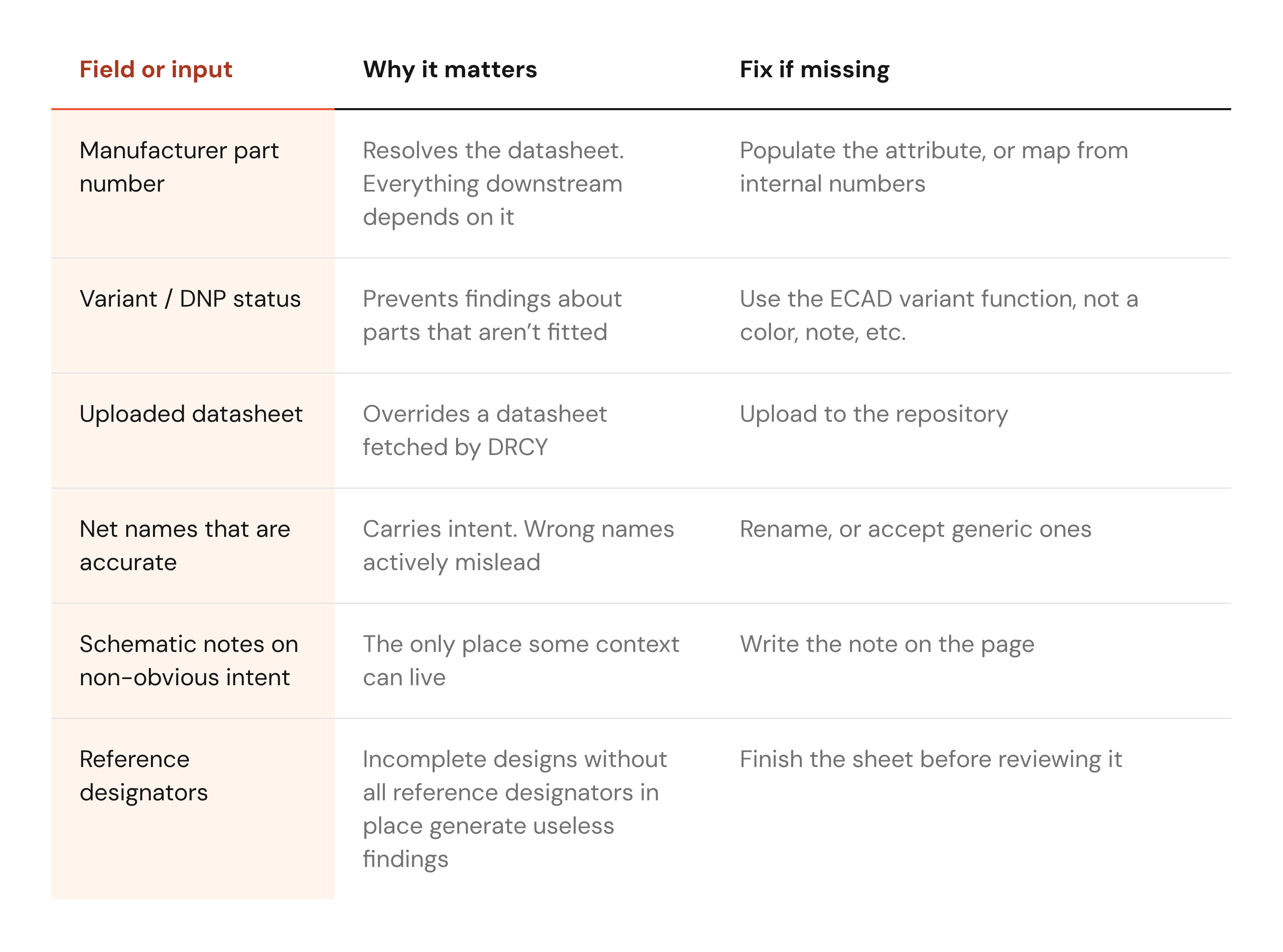
One warning on net names: An inaccurate name is worse than a generic one. A net called VCC_5V carrying 3.3V is not only unhelpful, it misleads DRCY and can lead to confidently incorrect findings. If your net names aren't trustworthy, fix them or fall back to generic ones. Don't leave misleading ones in place.
Putting it together: the first-week sequence
- Before the first run, click a few components and confirm manufacturer part numbers are present. Internal numbers only? Set up the mapping now.
- Select your variant and the pages you want reviewed.
- Let DRCY finish. Budget roughly five to ten minutes per schematic page, more on dense pages. Progress posts into the comments, and the page needs a refresh to show it.
- Open the missing datasheets list before reading any findings. Upload what's missing for active components.
- Re-run and compare.
Step five is where the value shows up, and it's the one people skip. A review with resolved datasheets is reasoning about your actual parts. One without is just guessing.
Start with the two-minute check
Before assessing DRCY’s review quality, try clicking three random components and looking at the attributes.
Manufacturer part numbers present and correct? You're set up for a good review. Internal numbers or empty fields? That's the first fix, because no amount of model quality compensates for a reviewer that doesn't know what your parts are.
Component data matters just as much when it’s a senior engineer reading datasheets at 7pm. The difference with DRCY is that before you even start you get a comprehensive list telling you where you stand.
Ready to check your own designs? Start a design review and open the missing datasheets list first.
FAQs
Do I have to upload a datasheet for every component?
No. For parts carrying a manufacturer part number, DRCY fetches them. You only upload for parts it can't find, or where the datasheet it found was wrong.
Which datasheet revision does DRCY use, and can I see which one?
It fetches a current datasheet from its sources, and every finding shows the document and page it referenced. If that's the wrong document, upload the right one and it takes priority.
Our parts aren't public. Is that a problem?
No, it just means you supply the datasheets rather than having them fetched. Upload them before the first run so your first review is useful instead of empty.
Why did it flag a voltage divider that isn't there?
Almost certainly a DNP component visible in the netlist. Select your variant before running, and confirm that DNP status is indicated by an attribute in the component rather than in a color or a note.
Can I tell DRCY which attribute holds our part numbers?
Yes, and it's worth doing when your part numbers are already set up in a particular component attribute, or when you want DRCY to use an internal mapping. If your part numbers are already found correctly, you don't need to tell DRCY anything extra.
Can I run it on part of a design?
Yes. Select specific pages when you start. A first full pass usually wants everything; once you're iterating on one section, scoping down is faster and quieter.