How to export a complete Design Review report with Allspice Automations
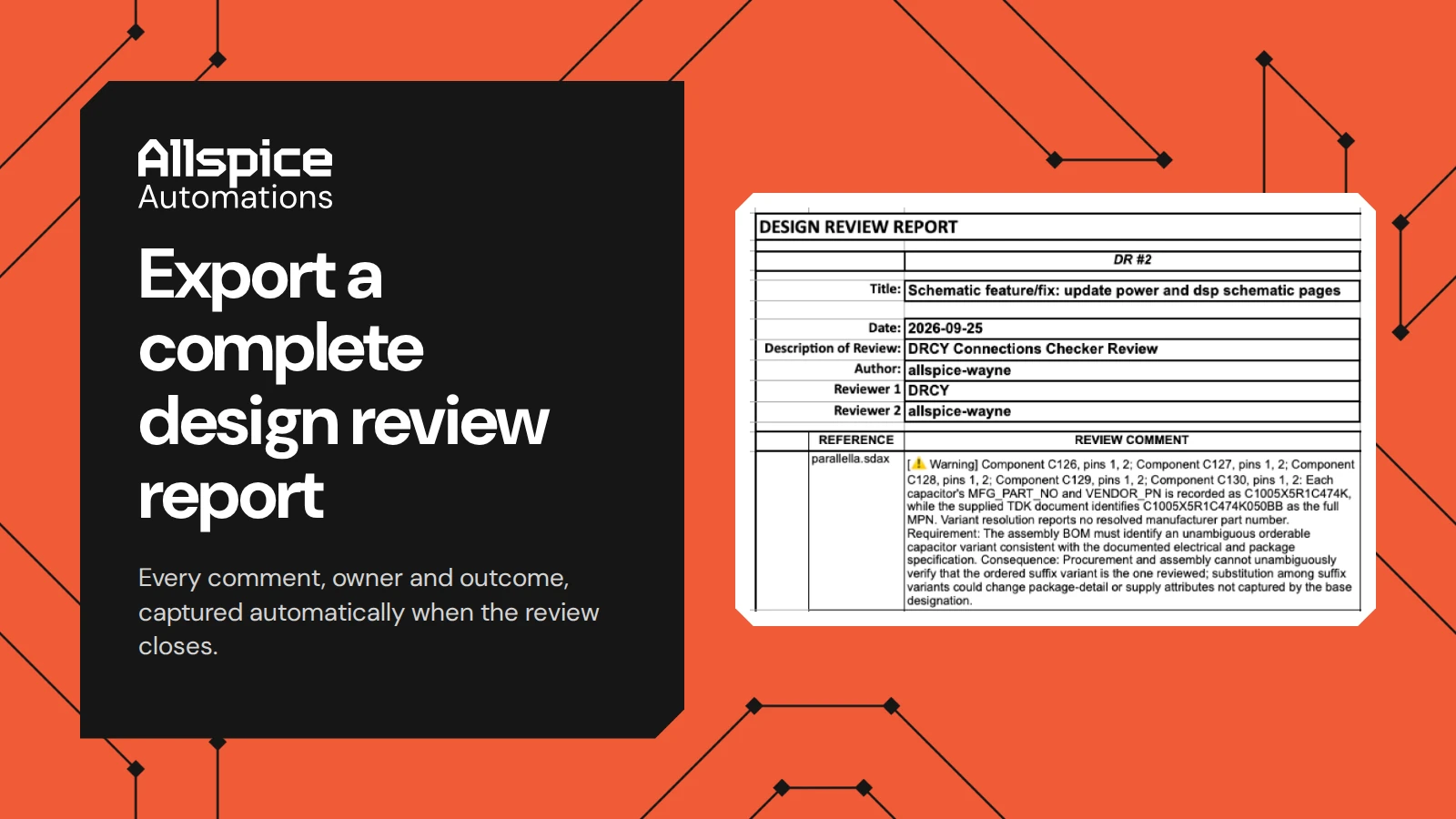
Allspice Automations can export a complete design review, with every comment, owner and outcome preserved, automatically whenever the review closes.
Automations turn events in your hardware design workflow into triggers for automated work. Those events can be updates to your schematic and PCB source files, bill of materials changes, and scheduled time-based events. Triggers can run deterministic scripts that check electrical rules, flag end-of-life parts and vendor supply issues early, kick off new tasks in your backlog, and connect with your other tools through APIs.
In this post, we'll look at a simple automation that exports a design review into a single report. It runs on its own when a review is closed, and on demand at any time.
Watch the walkthrough
Prefer to read? The steps below follow the video.
Why export a design review
A design review produces decisions: what was flagged, who owns the fix, and whether it was resolved. These items are automatically tracked in Allspice as your system of record for your design files, but sometimes teams want to generate reports for legacy workflows in their organization. This automation captures the whole review in one structured spreadsheet export.
How it works
1. Start from a design review
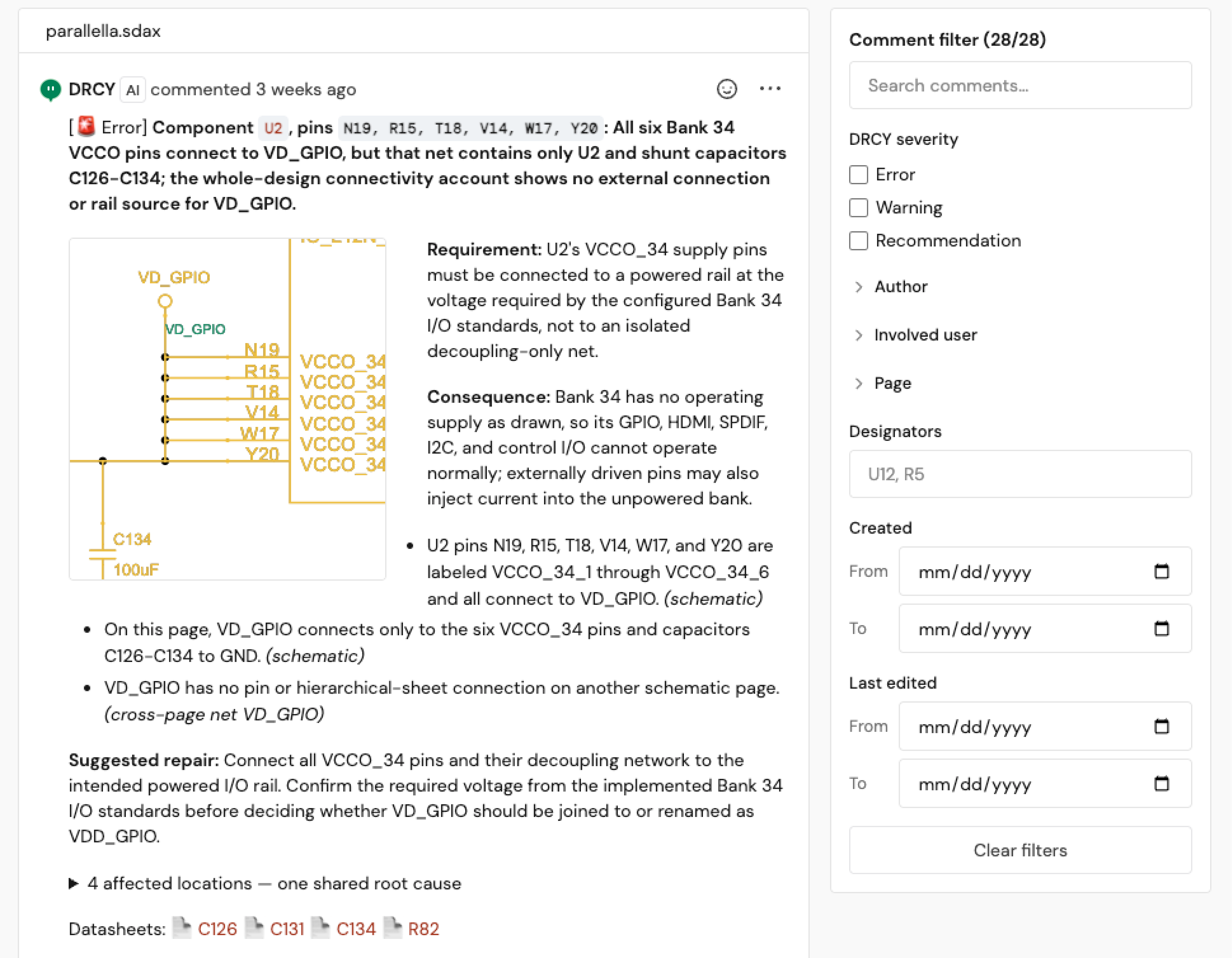
In our example, we have an existing design review that contains multiple comments and discussions. Some comments are resolved, while others have replies describing next steps, or a reaction like a thumbs up.
The review isn't finished yet, but we'll run the automation now to capture a snapshot of where it stands.
2. Run the workflow on demand
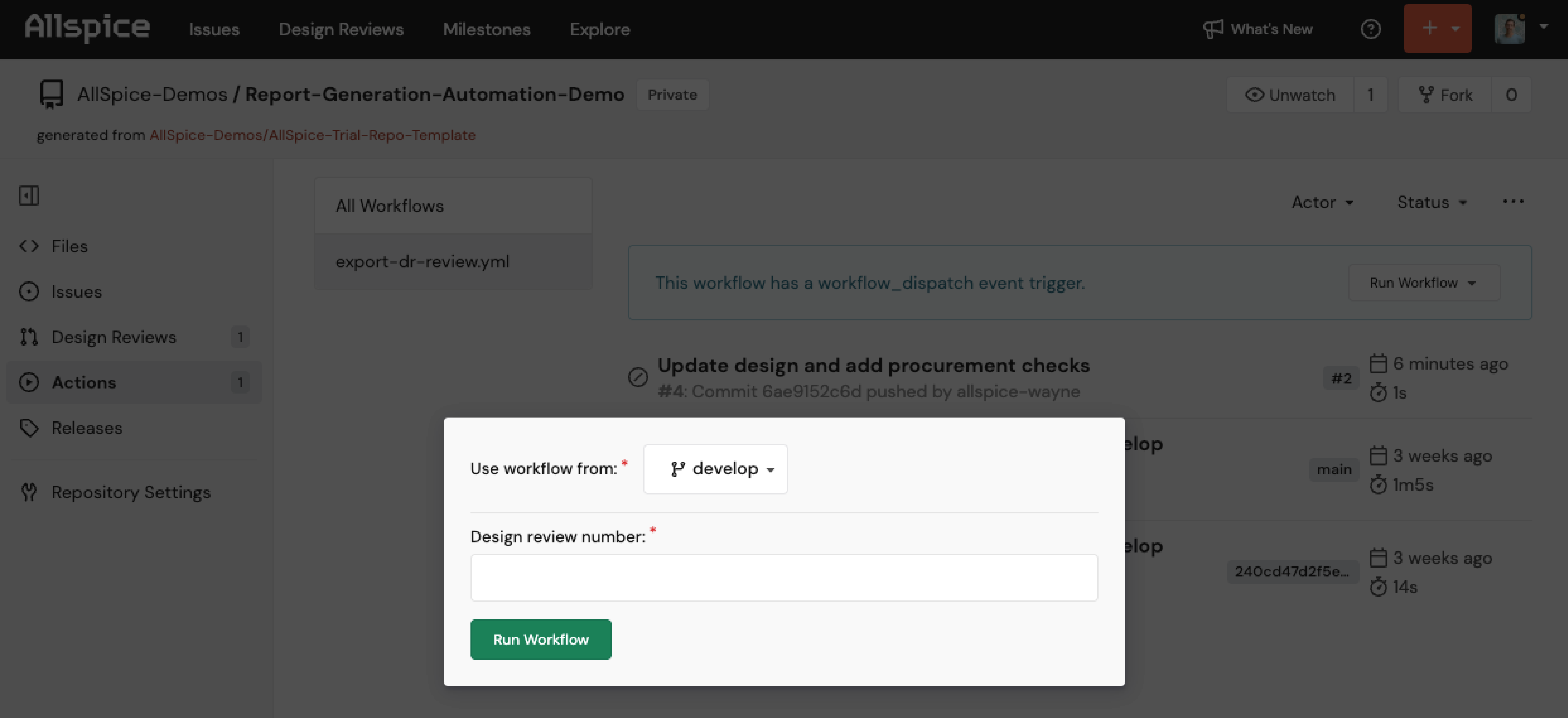
Click Actions to open the Automations panel. Select the export design review workflow on the left, click Run Workflow, enter the review number, and run it.
If the review had been merged and closed, this step would happen automatically. The on-demand run works exactly the same way and produces the same report.
3. Download the report
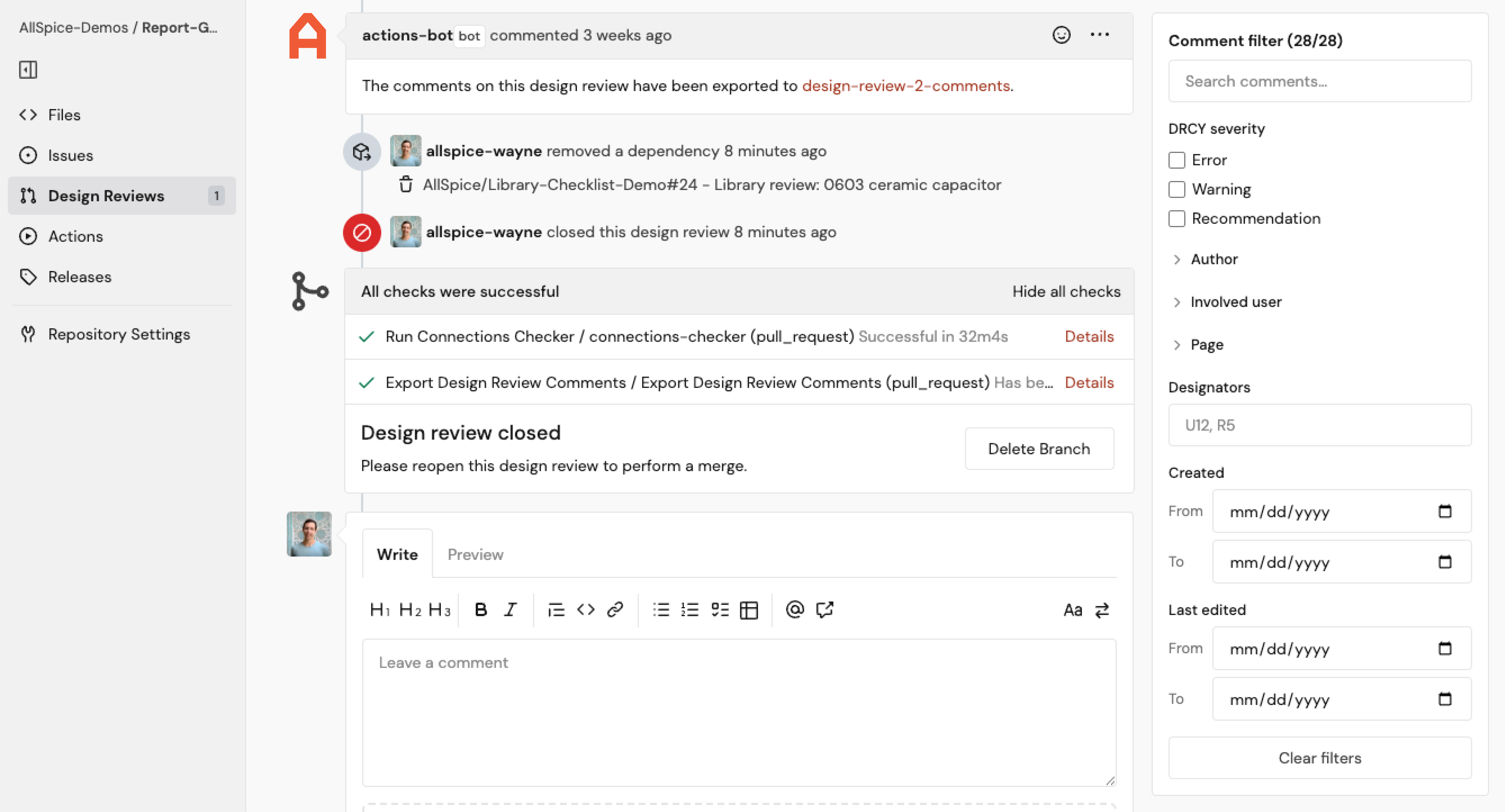
Back on the design review page, the automation posts a comment at the end of the conversation with a link to the report. Click it to download.

4. See what's inside
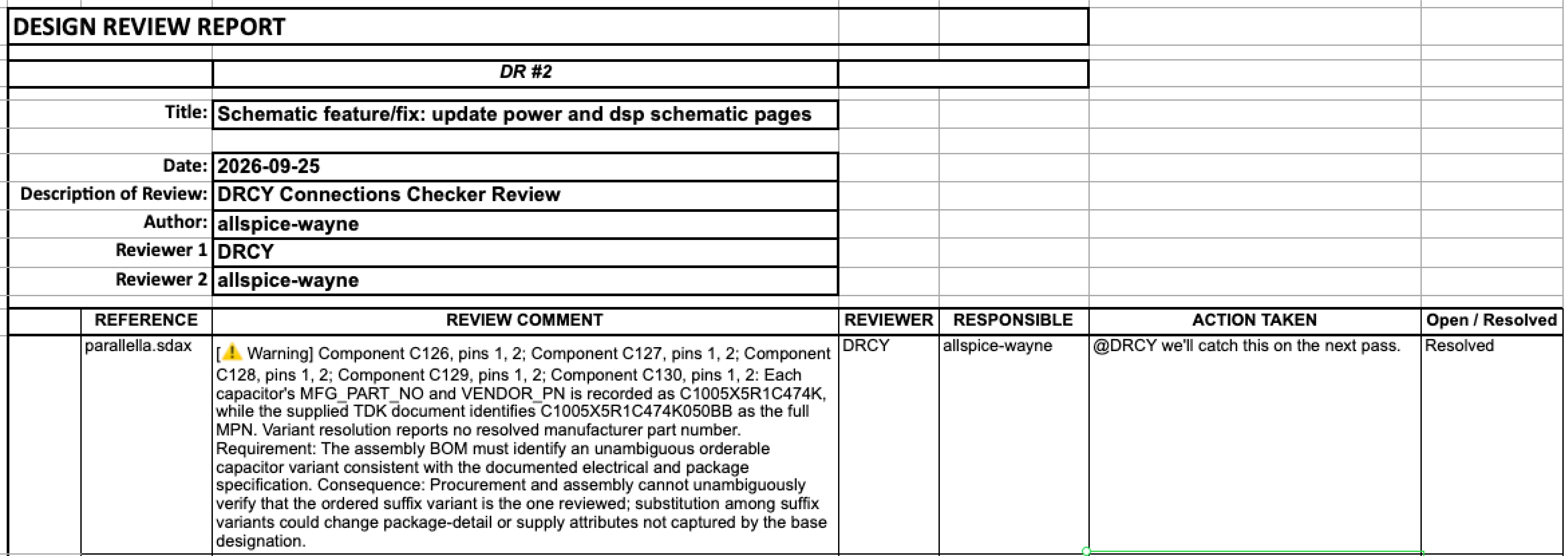
The report opens with a summary of the review: its title, description, author and the reviewers who took part. Below that, every comment is listed with:
- Who reviewed it and who's responsible
- Its disposition, such as resolved or open
- A link back to the design snippet captured during the review
The first comment we saw, which was marked resolved in Allspice, shows as resolved here too. The rest are marked open.
Beyond review exports
This is one of many things you can do with Allspice Automations. Turn design events into triggers, cut manual work, and ship hardware faster with fewer errors and board re-spins.